Before you start — have three things to hand: the welcome message containing your playlist link, the television or box you intend to watch on, and a connection of at least 25 Mbps (50 Mbps if you want steady 4K). Do not have a line yet? Order one here — activation takes under 15 minutes.
Why TigerTV standardised on IBO Player
One player, one set of instructions, one place for support to look when something misbehaves. IBO Player installs on virtually any operating system, including the closed WebOS and Tizen systems that most IPTV apps never reach, and its playback engine is unusually smooth for how light it is. It is a paid third-party app: a small one-time licence — roughly €5 for a year or €10 for life — is bought directly from its developer, and that fee is separate from your TigerTV subscription.
Two limits are worth knowing before you begin: the app has no recording function, and it cannot display two streams side by side. Neither affects a normal TigerTV line, which authorises one device at a time anyway — see the plan details if you need a second screen.
Install on Android phones, tablets and boxes
Download the installation file
Open the browser on your phone, tablet or Android TV box and fetch the IBO Player APK from the developer's official download centre. Your TigerTV welcome message contains the exact link.
Approve the download
Android warns you because the file comes from outside the Play Store. That warning is normal for sideloaded apps — choose Download anyway.
Open the downloaded file
Pull down the notification shade, or open your Files app, and tap the APK you just saved.
Install
Tap Install and wait a few seconds for Android to unpack the package.
Launch the app
Tap Open. The first launch shows an introductory screen explaining how playlists are added — read it, then press OK.
Note your Device ID and Device Key
Both appear under the person icon on the dashboard. You will need them for the activation step further down this page.
Install on Amazon Fire TV Stick
The Fire Stick needs one extra utility because Amazon's store does not carry IBO Player. The whole process takes about ten minutes with the remote.
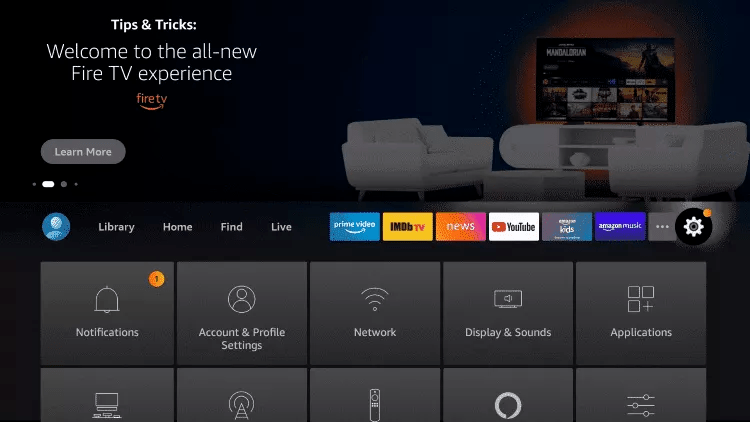
Open search on the Fire TV dashboard
From the home screen, move to the magnifier icon at the far left of the menu bar and press OK on the remote.
Find the Downloader app
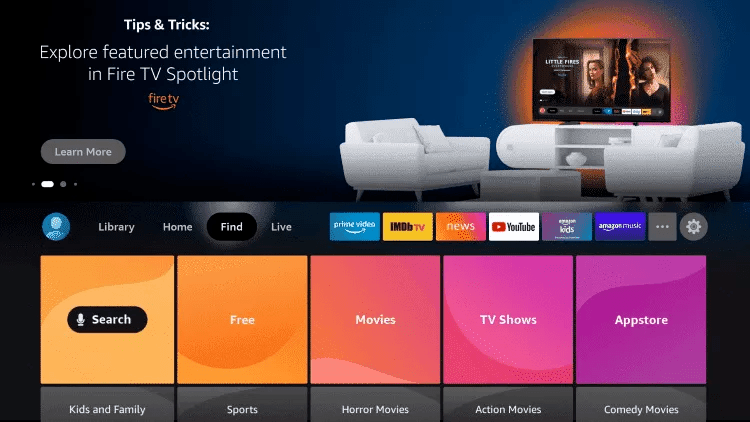
Type the letter D on the on-screen keyboard. Downloader appears as the first suggestion — highlight it and press OK. This utility lets you sideload apps that are not in the Amazon store.
Install and allow access
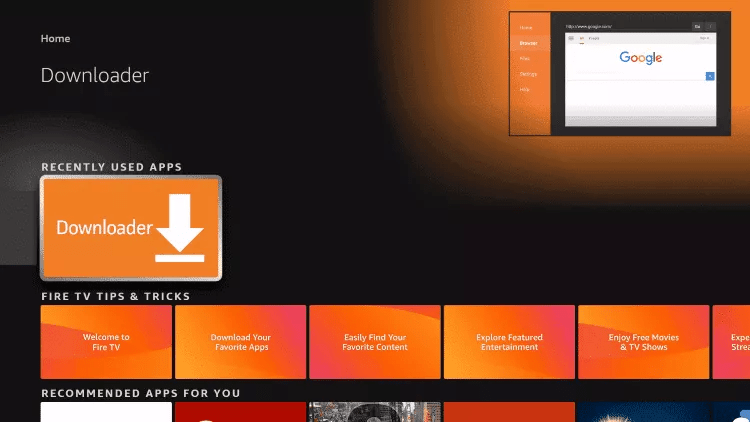
Select the app, press Download, and when Fire TV asks for media access press Allow.
Enter the IBO Player code
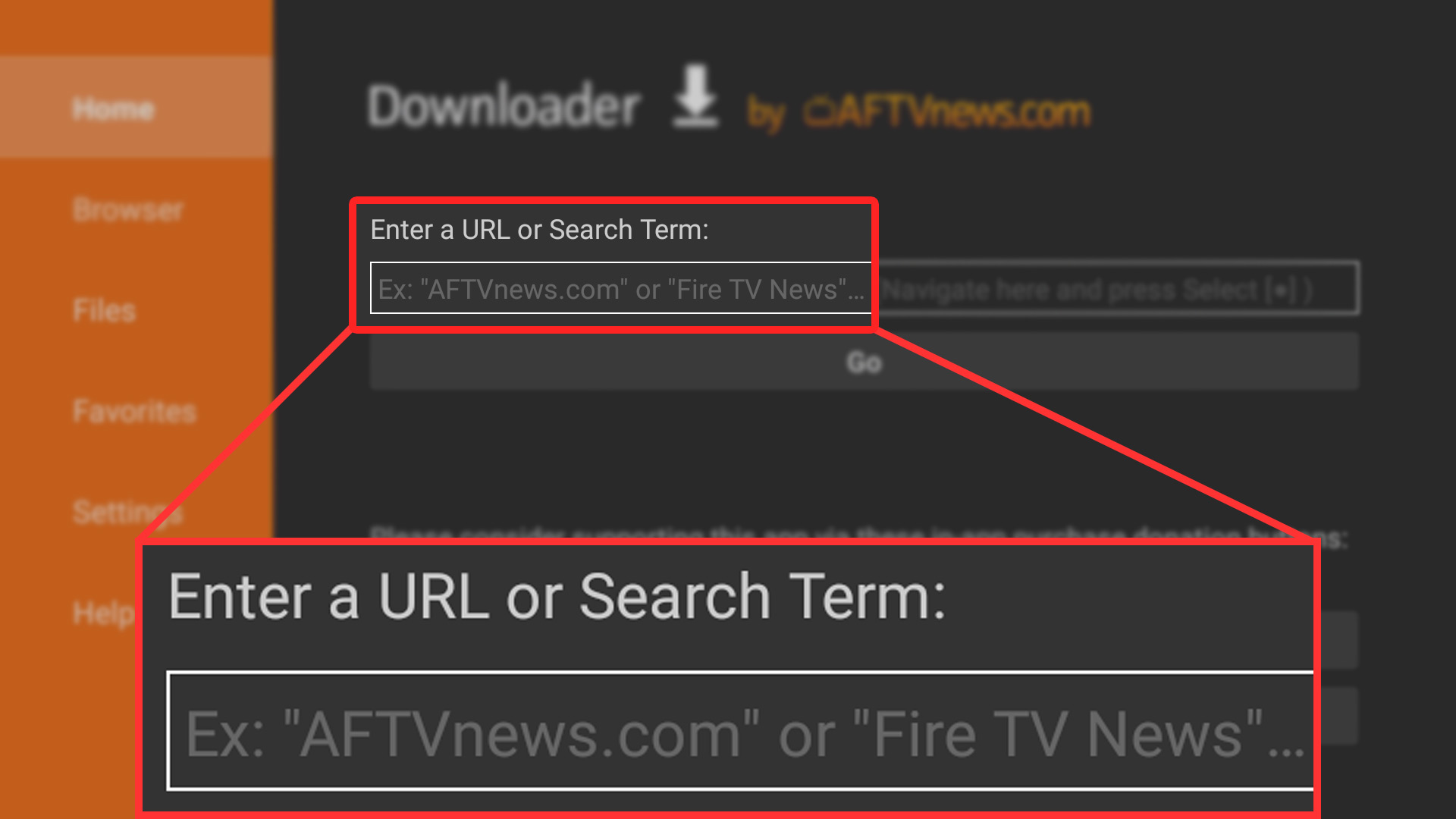
Open Downloader, move to the URL field above the yellow Go button, press OK, and type the official Downloader code for the IBO Player Android build: 511693. Press Go.
Wait for the download
Downloader switches to its Browser section and pulls the package from the developer's site. Leave the remote alone until the progress bar completes.
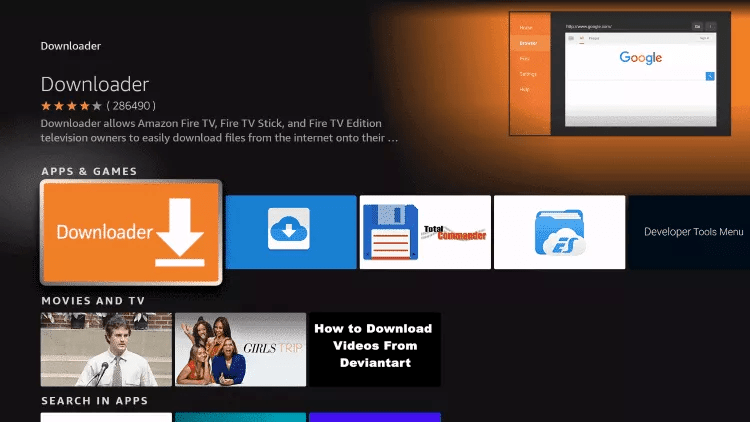
Unlock unknown sources
Amazon blocks the install because the file is not from its store. Go to Settings → My Fire TV → Developer options → Install unknown apps and switch Downloader to ON.
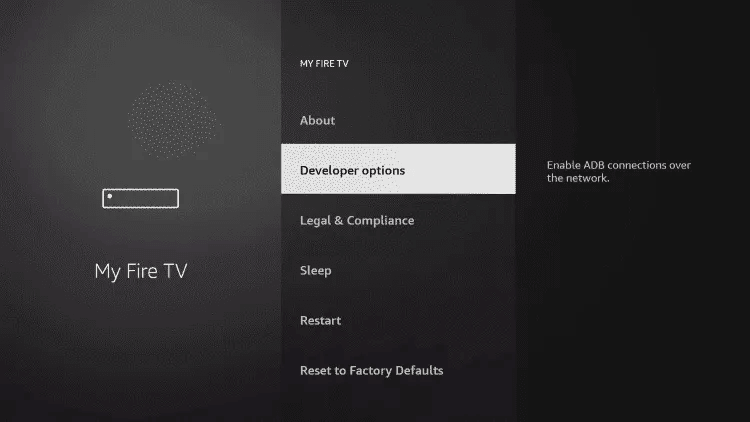
Install and open
Return to Downloader, confirm the install, then press Open. The intro screen appears — press OK and note the Device ID and Device Key.
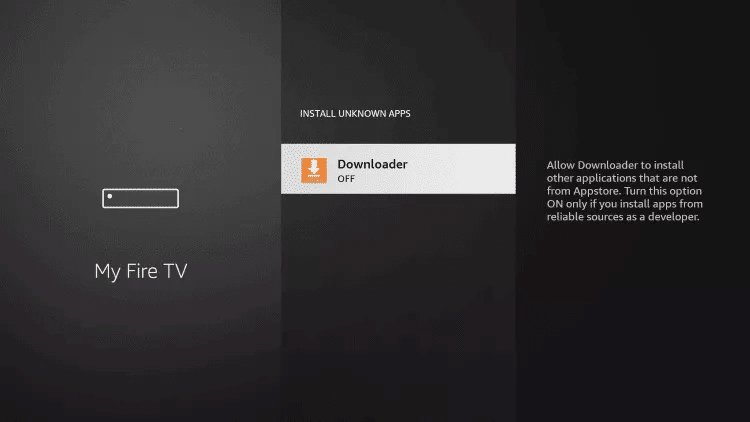
If Developer options is missing from the My Fire TV menu, highlight About and press OK seven times. The menu then appears.
Install on Windows
Download the Windows installer
IBO Player runs on Windows 10 and 11, 64-bit only. Grab the installer from the developer's site — the link is in your activation email.
Get past the SmartScreen prompt
Windows blocks installers that did not come from the Microsoft Store. Click More info, then Run anyway.
Work through the wizard
Click Next, tick the desktop-shortcut box if you want one, then Next again.
Finish the installation
Press Install, wait for the progress bar, then Finish to open the player.
Install on macOS
Download the macOS build
From the IBO Player download page, pick the macOS version.
Drag it into Applications
Open the downloaded disk image and drag the icon into your Applications folder. Installation takes about ten seconds.
Approve the first launch
macOS refuses apps installed outside the App Store. Open System Settings → Privacy & Security, scroll to the security section and click Open anyway, then confirm. The choice is permanent.
Install on Samsung and LG televisions
Open the content store
On an LG WebOS television open the LG Content Store; on a Samsung Tizen set open the Apps panel. The rest of the steps are identical.
Search for the app
Click the magnifier at the top right and type IBO Player.
Pick the right result
Several apps have similar names. Choose the one named exactly IBO Player and ignore the variants.
Install and launch
Press Install, then Launch. A welcome message appears on first run — note the Device ID and Device Key shown on the dashboard.
Add your TigerTV playlist
IBO Player uses remote activation: instead of typing credentials on the television, you enter them once on the developer's portal and the app collects them over the air. It is faster than tapping a long password with a remote control.
Open the playlist manager
On a computer or phone, open the IBO Player website and click Manage Playlist in the top menu. Activation is remote: credentials are entered on the portal, not on the television.
Log in with your device details
Type the MAC address (Device ID) and Device Key you noted during installation, then sign in.
Add your TigerTV line
Click Add Playlist. Give it a name such as TigerTV, paste the playlist URL from your welcome message, and leave the XMLTV EPG field empty so the guide is read from the playlist itself. Tick Protect this playlist if you want a PIN.
Or use the Xtream Codes form
If your welcome message lists a host, username and password instead of a single link, click Add XC Playlist and fill those three fields.
Save and reload
Press Save, then reopen IBO Player on your television. The channels and on-demand libraries populate within a few seconds.
Two settings worth changing on day one
Fix the crowded Live TV layout
By default the live grid packs channel names under the preview window and the guide sits awkwardly. On the dashboard, click the screen icon next to the Wi-Fi symbol, switch Live Screen Style from the default to the alternative layout and save. Channel names get room to breathe and the mini preview lines up properly. Press the left arrow on the remote to bring the category column back.
Trim the lineup to what you actually watch
61,000 channels is a lot to scroll. Open Settings → Manage Categories and hide the countries you will never open — the guide loads faster and the remote has less work to do. Long-press OK on any channel to drop it into Favourites, which sits at the top of the category column.
Other settings you may need
| Setting | What it does |
|---|---|
| Parental Control | Sets a PIN on the app. The initial code is 0000; if you forget yours, reset it from the IBO Player portal. |
| Clear Cache | First thing to try when the guide misbehaves or artwork loads corrupted. |
| Live TV Player | Switches the playback engine between the Android, EXO and VLC decoders. If one channel stutters, try another engine. |
| Content Strategy | Loads the whole library at launch or only when a section is opened. Choose on-demand loading on slower boxes. |
| Auto Boot on Start | Opens IBO Player automatically when the television powers on. |
| Check for Updates | Keeps the app current. Run it if a feature stops behaving after a platform update. |
Still stuck?
Send a photo of the screen to our WhatsApp line and an agent will walk you through it — most calls end in under five minutes. The FAQ covers activation delays and device limits, and contact lists every channel we answer on. Once the picture is up, the channel list shows what to look for first.